
Live photo wall for events: let guests share photos via a QR code
Run a live photo wall at a party, festival, wedding or company event: guests scan a QR code, upload a photo and see it on screen. With moderation tips.
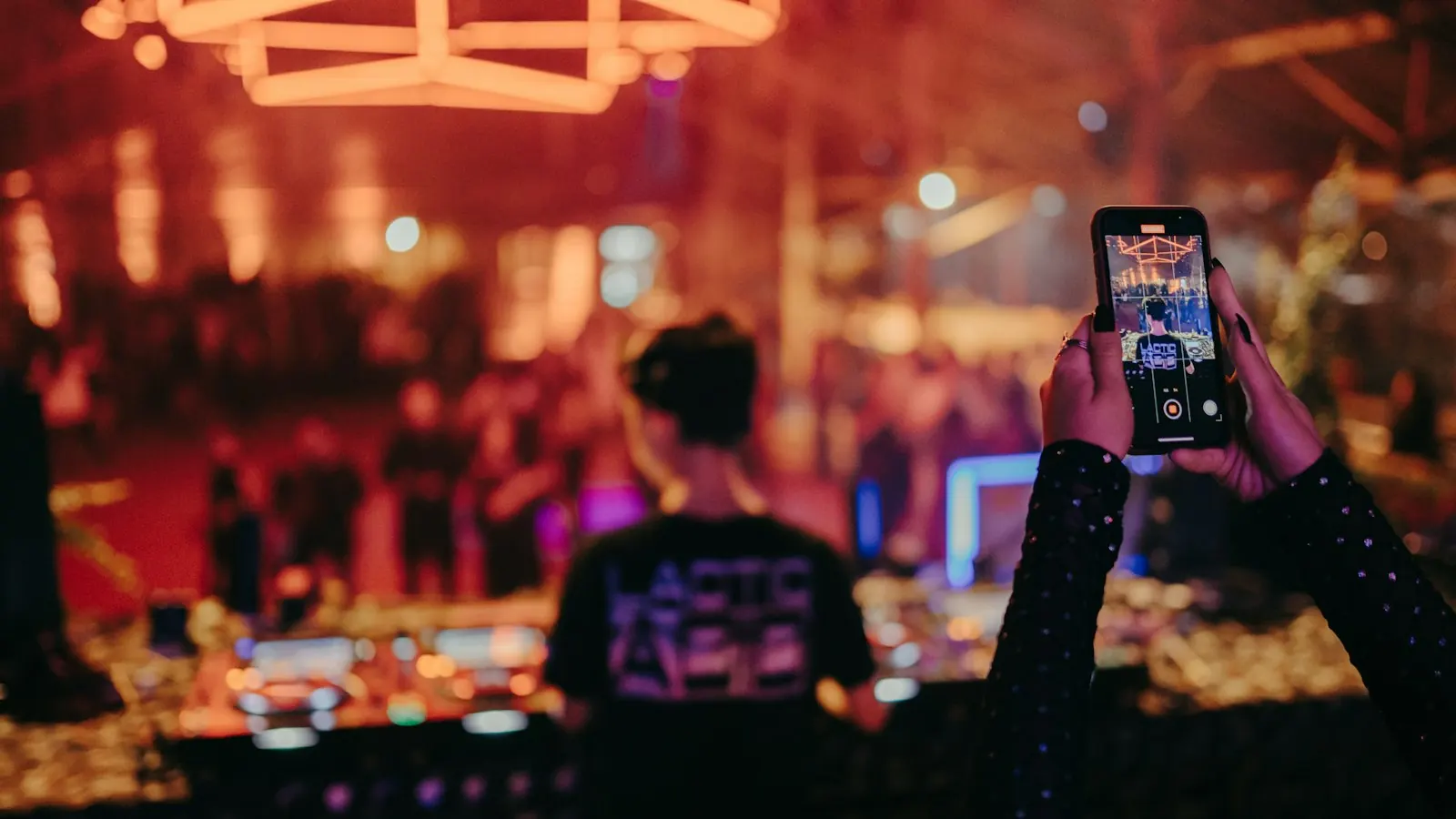
People look at screens that show them. A live photo wall turns guests into contributors: they scan a QR code, pick a photo from their phone and a moment later it’s on the big screen. No app, no hashtag hunting, no cables.
It works at company parties, weddings, festivals, sports clubs, school events and in cafés on a busy night.
How it works in Rivowall
- Turn on the QR code for a playlist. In the playlist settings, switch on Show QR code above the content and choose Let visitors share photos. Rivowall creates a secure upload link for that wall.
- Write a short reason to scan. For example “Scan and share your photo”. Choose which corner the code sits in.
- Guests scan and upload. From their phone’s camera, they open the upload page and send a JPG, PNG or WebP photo (up to 20 MB).
- You approve. By default, new photos land under Content → To review. Approve one and it’s added to the end of the playlist automatically.
- The wall updates. When the new photo has downloaded, the screen briefly shows “New photo added to the wall”.
Switching the QR code off withdraws the upload link. Turning it on again later creates a new one, so an old screenshot of the code stops working.
Moderation: approve first or publish directly?
Anyone who can see the QR code can send a photo. That’s why moderation is the default.
- Approve first (recommended for public events, cafés, anything with strangers): someone checks each photo before it appears. Use a phone or laptop during the event; it takes a second per photo.
- Publish directly (only the organisation owner can turn this on): every valid photo goes straight to the wall. It works for a closed group where you know everyone, such as a team outing.
Tips for a wall people actually use
- Make the code big enough. Test scanning from where guests will stand. A code in the corner of a TV across the room is too small.
- Say why to scan. “Share your photo from tonight” works better than a bare code.
- Seed the wall. Start with a few photos of your own so it doesn’t look empty.
- Mix it with your own content. Photos between the programme, sponsor slides and the bar menu keep people looking at the screen.
- Plan it by time. Show the photo wall in the evening and practical info during the day. See dayparting.
- Mind the network. Guests upload over their own mobile data. The screen itself keeps playing from its downloaded content if the venue Wi-Fi struggles; see offline playback.
Privacy
Photos of people are personal data. Keep it simple and fair:
- tell guests at the entrance and next to the code that photos may appear on screen,
- use moderation, so you can leave out photos of people who didn’t want to be shown,
- remove photos after the event if you don’t need them.
This isn’t legal advice. If your event is large or involves children, check what’s required for your situation.
Not just for events
The same QR code can also link to any web page instead of a photo upload: your menu, a sign-up form, a booking page or your Google review page.
Try it
Set up a test wall with your colleagues and see how it feels. Start a free 14-day trial, or read more on our events page.