
Get more Google reviews with the screen in your shop or café
Reviews help local businesses show up in Google and Maps. Use a QR code on your in-store screen to ask every customer for a review, within the rules.
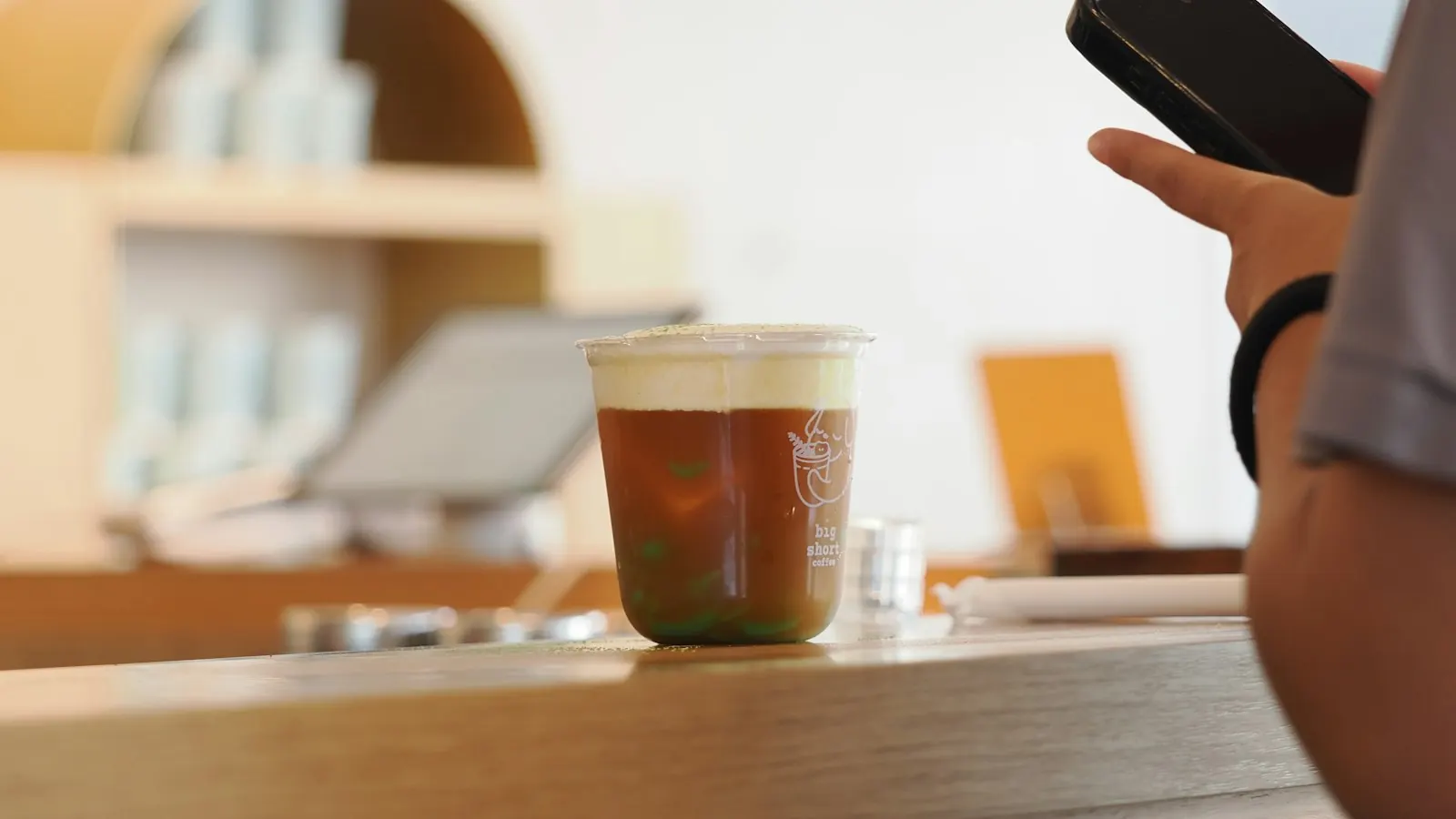
When someone nearby searches for “coffee”, “lunch” or “bike repair”, Google decides which local businesses to show. Your reviews are part of that decision. And the best moment to ask for one is while the customer is still in your shop, looking at your screen.
Why reviews help you get found
Google explains that local results are based mainly on three things: relevance, distance and prominence. Prominence is about how well known a business is, and Google says that “more reviews and positive ratings can help your business’s local ranking.” Replying to reviews helps too.
You can’t change your distance to the searcher. You can work on your profile and your reviews.
Why your screen is the right place to ask
Most review requests arrive by email days later, when the experience has faded. A screen asks at the moment it’s fresh:
- the guest is waiting for a coffee or the bill and has a phone in hand,
- the request is the same for everyone, so you don’t have to ask anyone personally,
- it runs all day without staff having to remember it.
Step 1: get your review link
In your Google Business Profile, Google gives you a link and a QR code that open the review window for your business directly. You’ll find it under the option to ask for reviews; Google’s help page explains how to request reviews.
Copy the link. You’ll use it in Rivowall so the QR code is shown on screen and stays sharp at any size.
Step 2: add the QR code to a playlist
In Rivowall, open a playlist and switch on Show QR code above the content. Choose a normal website link and paste your Google review link. Add a short line such as “Enjoyed your visit? Leave us a review”. Choose the corner where the code should sit.
The code then appears on top of your normal content (menu, specials, promotions), so you don’t need a separate review slide.
Step 3: make it easy to scan
- Size: test scanning from where your customers stand or sit, not from right in front of the screen.
- Placement: near the counter, the exit or the waiting area works better than a screen people only see in passing.
- Timing: schedule the review playlist for calm moments and the end of a visit, for example after lunch rush or in the evening. See dayparting.
Stay within Google’s rules
Google is strict about reviews. According to its review guidance:
- No incentives. Offering a discount, free drink or prize in exchange for a review, or for changing or removing one, is “strictly prohibited”.
- Genuine experiences only. Reviews must reflect a real visit.
Our own advice on top of that: ask everyone, not only the guests you think are happy. A screen makes that easy, because it asks every guest in the same way.
So “Leave us a review and get a free coffee” is out. “Tell others what you thought” is fine.
Then: reply to reviews
Reviews that come in deserve an answer, good or bad. A short, personal reply shows future customers you’re listening, and Google mentions that replies help a business stand out.
Other links worth putting on screen
The same QR feature works for any link: your online menu, a booking page, a newsletter sign-up or an event registration. At events you can also use it as a live photo wall.
Get started
Add your review link to the playlist on the screen your customers look at most. Try Rivowall free for 14 days.