
Digital menu boards for cafés and restaurants: a practical guide
How to set up a digital menu board: what to show, how to design it so guests can read it, how to switch menus by time of day and what it costs.
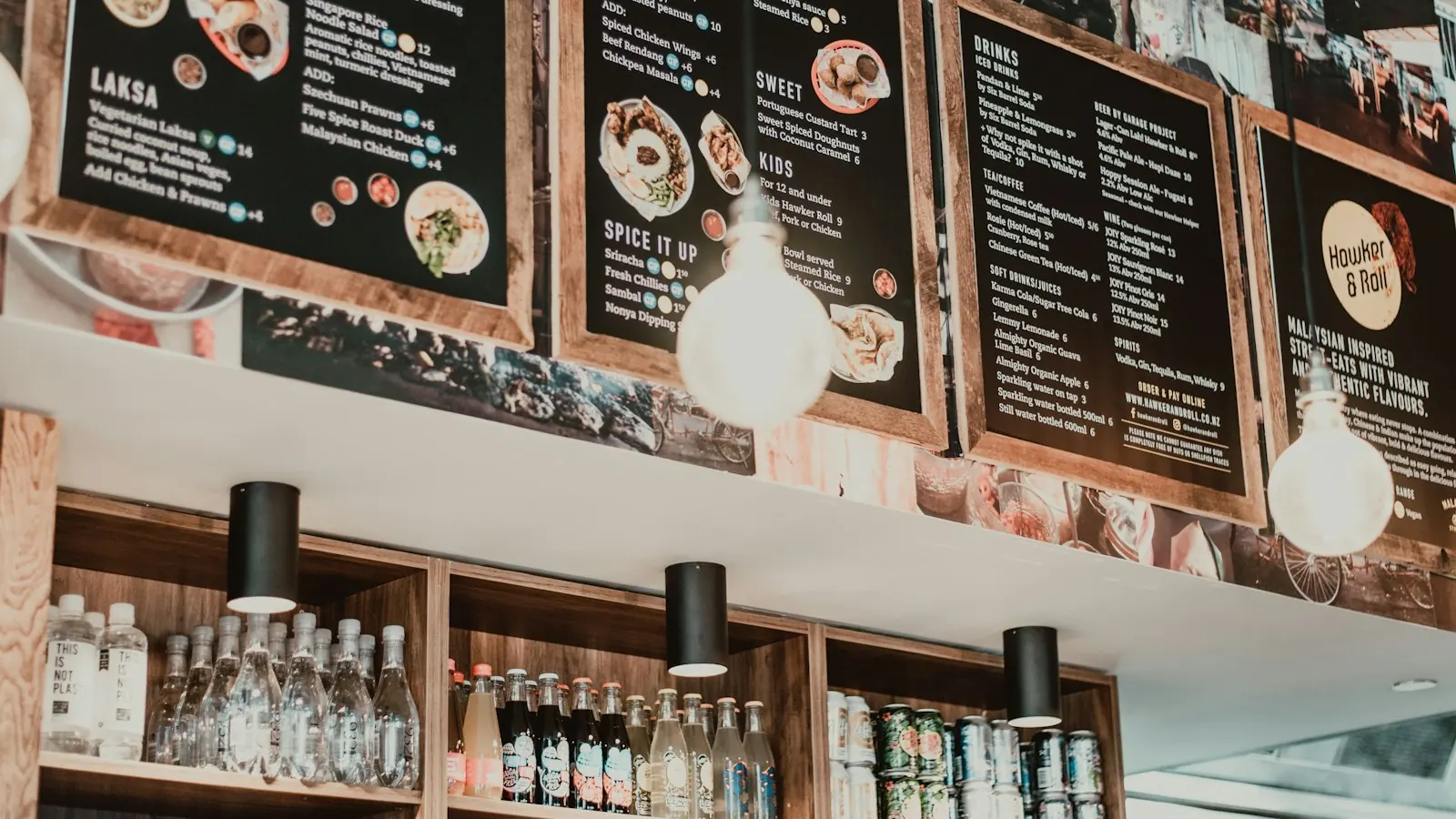
A chalkboard has charm until the specials change three times a day. A printed menu is sharp until the prices go up. A digital menu board sits in between: it looks as good as print and changes as easily as chalk.
This guide is for cafés, lunchrooms, bakeries, bars and restaurants that want one or a few screens, not a fast-food chain with a menu wall.
What belongs on a digital menu board
Don’t copy your whole menu onto a screen. Guests have the printed menu or a QR menu at the table for that. The screen does a different job: it sells the things you want to sell right now.
Good candidates:
- Today’s specials and the soup of the day
- Time-bound offers: breakfast deal, lunch combo, happy hour
- Your best margin items with a great photo
- Seasonal products for as long as you have them
- Practical info: opening hours, Wi-Fi, “order at the bar”
- Events: live music, quiz night, the next tasting
Design for the far side of the room
A menu board is read from three to six metres away, often by someone in a queue. That changes the rules:
- One message per slide. A dish, a price, a photo. Not five.
- Big type. If you can’t read it from the back of the room, it’s too small.
- High contrast. Dark text on a light background, or the other way round. No text over busy photos.
- Prices people can find. Same place, same style on every slide.
- Your own photos. A good phone photo of your actual croissant beats a stock photo of someone else’s.
More tips in our five rules for screen content.
Switch menus by time of day
This is where digital wins. Instead of one menu all day, plan content by daypart:
| Time | What the screen shows |
|---|---|
| 07:00–11:00 | Breakfast, coffee deals |
| 11:30–14:30 | Lunch, soup of the day |
| 14:30–17:00 | Cake, afternoon coffee |
| 17:00–19:00 | Happy hour, drinks |
| From 20:00 | Events, photo wall |
In Rivowall you set this up once with a schedule. The screen switches on its own, every day. How that works, and how to handle weekends and holidays, is in dayparting for digital signage.
You can also give an item an end date. A seasonal special stops automatically when the season is over, even if the screen is offline at that moment.
Portrait or landscape?
Portrait looks like a classic menu board and suits a single dish with a tall photo. Landscape works better when you show two or three items side by side, or video. Check whether your screen supports portrait mounting before you drill (see consumer TV vs commercial display).
What you need
- A screen where guests look while they decide: above or behind the counter, next to the queue, in the window.
- A player to run the software.
- Menu board software with scheduling and offline playback, so a Wi-Fi hiccup during a busy lunch doesn’t leave you with a black screen.
- Content: a handful of slides made in a design tool you like, or photos plus text.
Rivowall costs €9 per screen per month or €90 per year, and every feature is included. A full cost breakdown, hardware included, is in how much digital signage costs.
Three mistakes we see often
- Too much text. If a slide needs a paragraph, it’s two slides.
- Outdated offers. A breakfast deal at 16:00 tells guests nobody’s paying attention. Use schedules and end dates.
- The screen in the wrong place. Put it where people look while they decide, not where there happens to be a wall socket.
Get started
Pick your busiest moment of the day, make three slides for it, and schedule them. Then stand where your guests stand and look. Try Rivowall free for 14 days, or read how venues like yours use it on our hospitality page.